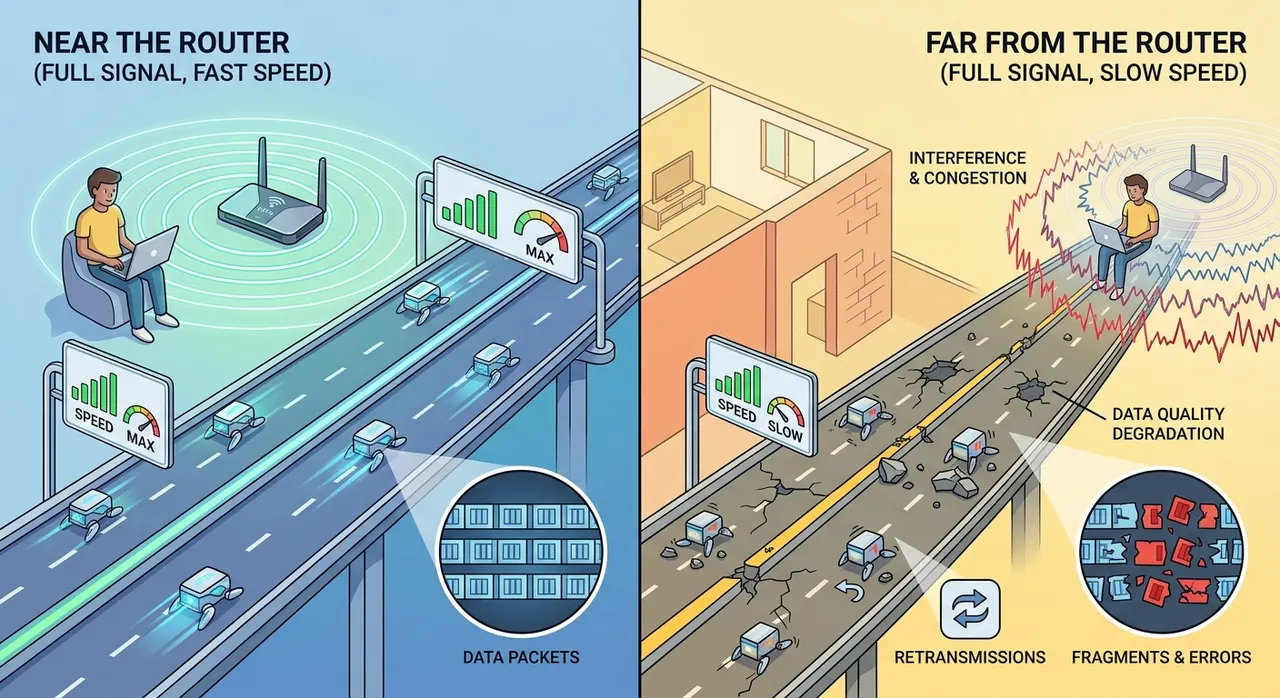
You can be standing in a room where your phone shows a perfectly healthy WiFi signal, yet a webpage takes forever to load.
Move three metres closer to the router and suddenly everything feels normal again.
That seems wrong.
If the WiFi icon is showing full bars, shouldn't the connection be fast?
Not necessarily.
The little WiFi icon is one of the most misleading things on your phone. It gives you a quick idea of how well your device can communicate with the router, but it doesn't tell you how fast the internet is, how crowded the wireless channel is, how much data other devices are using, or whether the router itself is struggling.
Those are different things.
And once you separate them, the mystery of "full bars but terrible WiFi" starts making a lot more sense.
The WiFi bars aren't measuring your internet speed
This is the first thing to understand.
Your WiFi bars are mainly an indication of the strength or quality of the wireless connection between your device and the router or access point. They aren't a speedometer for your internet connection.
Your phone could have a strong radio connection to the router while the internet connection coming into the router is slow.
Or the wireless channel could be crowded.
Or another device could be using a large amount of the available bandwidth.
Or your phone could be connected using a slower WiFi band.
Google lists distance, physical barriers, frequency band, device capability, interference and the speed supplied by your internet provider among the factors that can affect WiFi performance.
So think about the path your data has to travel.
Your phone communicates with the router.
The router communicates with your internet provider.
Your provider connects you to the website or service you're trying to reach.
A problem anywhere along that chain can make the internet feel slow.
The WiFi icon is only telling you something about one part of the journey.
That's why you can have full bars and still be waiting for a video to buffer.
So why does distance from the router matter?
Because WiFi is radio.
And radio signals don't remain equally strong everywhere in your house.
As you move farther from the router, the wireless signal has to travel farther before it reaches your device. Walls, floors, furniture and other objects can weaken it along the way.
Your router and phone are constantly communicating with each other. They send information over the air, your device receives it, and both sides have to deal with whatever gets in the way.
As the wireless conditions become worse, the connection may have to use a lower data rate or retransmit information that didn't arrive properly.
That's one reason a connection can remain usable while becoming much slower.
Google specifically points out that distance and building materials can affect WiFi speed, while Intel notes that objects between the access point and device can diminish the signal and affect wireless performance.
This also explains something that feels almost ridiculous when you're standing at home.
You can move your phone only a short distance and suddenly the connection changes.
You're still in the same room.
You're still connected to the same router.
Nothing appears to have changed.
But radio signals don't care about what feels like a small movement to you.
Moving around a room can change the path between the antennas, the objects the signal has to pass through, and the amount of interference your device experiences.
Sometimes a small change in position really can make a noticeable difference.
Walls are much worse than they look
A wall doesn't look particularly threatening.
It's just a wall.
To a WiFi signal, though, the material matters.
Wood and clear glass generally have less effect on WiFi than dense materials. Concrete, brick and metal can cause much more trouble. Google specifically warns that dense building materials can reduce wireless range, slow the connection or even block the signal in some areas.
This is why two houses with the exact same router can have completely different WiFi performance.
One might have a fairly open layout with lightweight walls.
Another might have thick concrete walls, reinforced structures, multiple floors and a router tucked away in a corner.
The router hasn't necessarily become worse.
The environment around it is simply making its job harder.
And there's another detail people often miss.
It's not always the number of walls that matters. The type and position of those walls matter too.
Your router might be only a few metres away, but if the signal has to travel through several dense surfaces at an awkward angle, the wireless path can be much worse than the distance alone suggests.
Why can you have strong signal but slow speed?
This is where things get interesting.
Imagine you're in a room full of people.
You can hear the person standing next to you perfectly clearly.
That's a strong signal.
But if everyone in the room is talking at the same time, having a loud voice doesn't magically make the conversation faster.
WiFi has a similar problem.
Your device can have a strong connection to the router while the wireless environment around it is crowded.
Other nearby WiFi networks may be using the same or overlapping channels. Other devices may also be communicating over the network. Some electronics can create radio interference, particularly around the 2.4 GHz band.
That means signal strength and signal cleanliness aren't the same thing.
A strong signal in a noisy environment can still perform badly.
This is one reason people sometimes blame their internet provider when the actual problem is inside the house.
Your neighbours can slow your WiFi down
If you live in an apartment, townhouse or densely populated area, your router isn't the only router around.
Your phone might be surrounded by dozens of wireless networks.
Most of them aren't connected to your network, but their radio signals can still occupy the same wireless space.
The 2.4 GHz band is especially prone to congestion because it has been used by WiFi devices for a long time and is also shared with other types of wireless equipment. Intel notes that 2.4 GHz has fewer available channels and tends to experience more network clutter, while newer 5 GHz and 6 GHz bands offer more capacity and, in many situations, less congestion.
This is why WiFi performance can sometimes change during the day.
Your connection might be perfectly fine in the afternoon.
Then everyone comes home in the evening.
Suddenly the neighbourhood is full of phones, televisions, laptops, game consoles and smart devices all communicating wirelessly.
Your router hasn't moved.
Your internet plan hasn't changed.
The radio environment has.
Why 5 GHz is usually faster but doesn't travel as far
This is another piece of the puzzle.
Modern routers commonly use more than one WiFi frequency band, especially 2.4 GHz and 5 GHz. Newer equipment may also support 6 GHz.
They don't behave exactly the same way.
The 2.4 GHz band generally travels farther and tends to handle obstacles better, but it has less available wireless capacity and is more crowded.
The 5 GHz band can provide higher speeds and has more available channels, but its signals don't penetrate walls and other barriers as well as 2.4 GHz. Intel and Apple both describe this basic tradeoff between range and performance.
That's why you might get excellent speed beside your router on 5 GHz and noticeably worse performance in another room.
Your phone may even switch between bands depending on the network and device.
So when somebody says, "5 GHz has terrible range," they're not imagining it.
It's a tradeoff.
You get more room for fast communication, but the signal generally doesn't travel through obstacles as effectively as 2.4 GHz.
Why 2.4 GHz isn't automatically better
The opposite mistake is assuming that because 2.4 GHz travels farther, it's always the better choice.
Not quite.
That extra range comes with a crowded neighbourhood.
2.4 GHz is shared with plenty of older wireless equipment, and neighbouring networks can create congestion. Intel recommends paying attention to channel use when troubleshooting wireless performance because too many devices competing for the same wireless space can reduce throughput.
So you can end up with this strange situation:
2.4 GHz reaches the bedroom.
5 GHz barely reaches it.
But the 2.4 GHz connection is so crowded that it performs worse.
The answer isn't simply "use the strongest signal."
You want the best combination of signal quality, band, channel conditions, device capability and available bandwidth.
Your other devices can make WiFi feel slow
Suppose your internet connection is fast enough for several activities at once.
Now imagine one computer is downloading a huge file.
A television is streaming high quality video.
Someone else is uploading photos.
A game console is downloading an update.
And your phone is trying to load a website.
They're all asking the network to move data.
Your WiFi router has a limited amount of wireless capacity available at any particular moment. Your internet connection also has a limited amount of bandwidth.
Google explains that connected devices compete for bandwidth, and multiple high-bandwidth activities can make the connection feel slower.
This creates another "full bars but slow internet" situation.
The wireless signal can be excellent.
The network is simply busy.
Your internet plan can be the bottleneck too
There's an easy mistake people make when diagnosing WiFi.
They see a slow download and immediately blame the router.
But your router isn't responsible for creating your internet connection.
Imagine you have a very fast road inside your property, but the road outside your property is congested.
Improving the road inside your house won't fix the traffic outside.
The same thing happens with internet connections.
Your phone might have a strong, fast WiFi connection to the router, while the router is receiving a slower connection from your internet provider.
Google recommends testing the internet speed itself when troubleshooting slow WiFi, because the service from the provider can also be the limiting factor.
This is why comparing speeds at different locations in your home can be useful.
If the speed is poor everywhere, even close to the router, the problem may not be distance at all.
A simple test can show what's actually happening
You don't need expensive equipment to get a useful clue.
Try this.
Stand fairly close to your router and run an internet speed test.
Write down the download speed, upload speed and latency if the test provides it.
Then move to another room.
Run the same test again.
Then go farther away.
Try another test behind a wall.
Keep the conditions as similar as possible. Use the same device, the same server if your speed-test service allows you to choose one, and avoid starting large downloads while you're testing.
Now look at the pattern.
If the speed drops dramatically as you move away from the router, distance, walls, interference or the wireless link itself may be involved.
If the speed is almost identical everywhere, distance may not be the main problem.
If the connection is slow even when you're standing close to the router, investigate your internet service, router, device, network congestion or interference instead.
You can also repeat the test while connected to different WiFi bands if your router allows you to distinguish them.
The point isn't to produce laboratory-grade data.
You're trying to separate "the WiFi connection is weak" from "the internet connection is slow."
Those aren't the same problem.
Why moving the router can make such a big difference
A router hidden behind furniture isn't necessarily doomed.
But its location matters.
Wireless signals have to travel from its antennas to your devices. Putting the router in a central, open position can make it easier for the signal to reach more areas of the home.
Google recommends placing WiFi equipment in open areas and avoiding physical obstructions.
This is why putting the router beside the floor, behind a television, inside a cabinet or at one far end of the house can be a poor setup.
You might still see WiFi bars.
The signal may still reach the room.
But you're making the radio connection work harder than it needs to.
Sometimes moving the router a relatively small distance can improve the connection more than buying a faster internet package.
What about having a lot of devices connected?
This one needs a little nuance.
Simply having many devices connected doesn't automatically mean your WiFi will become slow.
A smart bulb that sends tiny amounts of data isn't going to behave like a television streaming high resolution video.
What matters is what the devices are actually doing.
A laptop downloading a large file can consume much more capacity than an idle phone sitting on the network.
A game console downloading an update can suddenly change the situation.
A cloud backup running in the background can do the same.
So if WiFi becomes slow whenever somebody starts watching video or downloading something, you may be seeing bandwidth competition rather than a weak signal.
Why does WiFi sometimes become slow only in one room?
This is usually a clue.
If your internet works well beside the router but becomes terrible in one particular room, start looking at the wireless path.
How many walls are between you and the router?
Are they concrete or brick?
Is the router sitting behind furniture?
Are you using 5 GHz?
Are there other wireless networks nearby?
Is there a large appliance or other source of interference close to the router or device?
Google notes that walls, floors and objects can affect wireless communication, while interference from other electronics and neighbouring networks can also cause trouble.
A dead zone isn't necessarily proof that your internet provider is bad.
It can simply mean the router isn't reaching that part of the building effectively.
Does a WiFi extender always fix the problem?
No.
An extender can help in the right situation, but it isn't magic.
If you put an extender in a location where it already receives a terrible connection from the main router, you're basically asking it to repeat a bad connection.
The better approach is to place additional access points or mesh equipment where they can still communicate well with the rest of the network.
The exact setup depends on the building, the equipment and the layout.
For larger homes, a properly positioned mesh system can provide better coverage than trying to make one router blast through every wall.
Google specifically recommends checking the placement of WiFi points and moving them to improve the connection between points.
Why does moving only a few metres sometimes fix everything?
This might be the strangest part.
You can be sitting on a couch with terrible WiFi.
Move your phone a couple of metres.
Suddenly the video loads.
That doesn't mean the router suddenly became more powerful.
Radio waves interact with the environment around them. Reflections, walls, furniture, people and other objects can change the way signals reach your device.
Your device also has its own antennas, and their position changes as you move the phone.
So two positions that look almost identical to you can produce noticeably different wireless conditions.
It's one of those cases where human intuition isn't very good at predicting radio behaviour.
The four things people call "WiFi" are actually different
This is the part worth remembering.
When somebody says, "My WiFi is slow," they could mean several completely different things.
Signal strength: How strong the wireless signal appears between your device and the router.
Signal quality: How clean and usable that wireless connection is, including the effects of interference and other wireless traffic.
WiFi capacity: How much data the wireless connection can move under the current conditions.
Internet speed: How quickly data can travel between your home network and the wider internet.
They influence each other, but they aren't interchangeable.
You can have strong signal and poor internet speed.
You can have a fast internet plan and poor WiFi coverage.
You can have a strong WiFi connection that becomes slow because several devices are competing for bandwidth.
And you can have a fast connection beside the router that falls apart once you put two thick walls between yourself and it.
That's why staring at the WiFi bars isn't enough to diagnose the problem.
So what should you do if your WiFi is full bars but painfully slow?
Start with the easiest checks.
Move close to the router and run a speed test.
If the speed improves dramatically, investigate distance, walls, band selection and router placement.
If it's still slow close to the router, check whether other devices are using a lot of bandwidth.
Then compare 2.4 GHz and 5 GHz if your router gives you that option.
Check for interference and crowded wireless channels if the problem keeps happening.
Restart the router if the connection has become unusually unstable.
Make sure the router and device software are reasonably up to date.
And don't forget the internet connection itself. If the speed is poor even right beside the router, the issue may be your provider, the router, the device, or something else entirely.
Google and Intel both recommend looking at distance, interference, device capability, router configuration and network congestion when troubleshooting slow wireless performance.
The little WiFi icon is leaving out a lot
We've gotten used to looking at those little bars as if they're a complete report card.
Four bars?
Great.
One bar?
Bad.
But real WiFi doesn't work that neatly.
Your phone can have a strong radio connection to a router that's struggling with congestion. It can have a good signal through a crowded 2.4 GHz network. It can be connected to a fast 5 GHz band that becomes unreliable after passing through several walls. It can have excellent WiFi while your internet provider is delivering a slow connection.
The bars are only one piece of the story.
So the next time you're sitting beside the router wondering why a page is still loading, don't just look at the WiFi icon.
Move closer.
Run a speed test.
Check what your other devices are doing.
Compare bands if you can.
Look at the walls between you and the router.
Sometimes the problem isn't that your WiFi signal has disappeared.
It's that the signal, the wireless network, and the internet connection are three different things, and your phone's tiny little icon doesn't bother explaining the difference.