
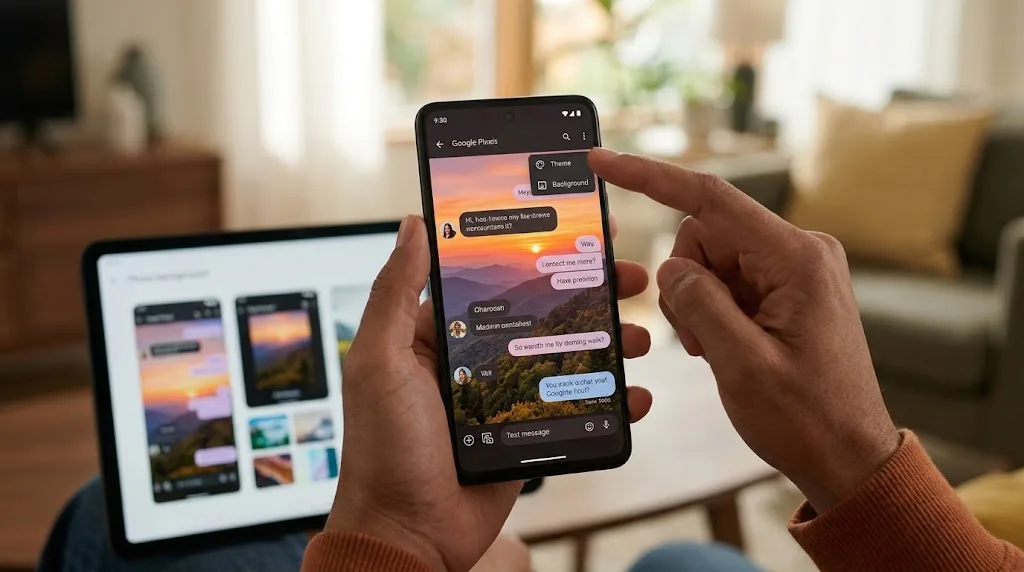
Google Messages has finally stopped making every conversation look more or less the same.
The September Android update added Chat Themes, which let you change the background and message bubble colors for individual conversations. You can choose one of Google's wallpapers or pick a photo from your own gallery. (blog.google)
That sounds straightforward enough.
Pick a picture, apply it to a chat, and you're done.
But there are a few things the announcement doesn't really explain. What happens to a photo that doesn't fit the screen? Does Google crop it? What happens to a portrait picture? Can a bright photograph make the messages difficult to read? And does the person you're talking to see the same background?
Those are the parts worth looking at. We put real photographs into real conversations and watched what happened — the walkthrough below shows the feature in actual use, and the rest of this article explains what's going on underneath.
Google Messages really does let you use your own photos
The feature is called Chat theme.
Inside a conversation, you can open the chat's options, select Chat theme, and choose a background. Google provides its own wallpaper categories, but there's also an option to choose a photograph from your phone. (Google Help)
You can also change the color of the message bubbles.
Google says the theme is applied to the individual conversation, so you can give one chat a completely different appearance from another. More importantly, the changes are only visible to you. The person on the other end doesn't suddenly see your photograph behind the conversation. (Google Help)
That makes this more like changing the appearance of your own copy of the conversation than sending someone a shared wallpaper.
What we tested
This is where the feature gets more interesting.
Rather than testing one convenient landscape photograph and calling it a day, the useful test is to throw different kinds of images at Google Messages and see what it actually does with them.
The test set covered:
- A portrait photograph
- A landscape photograph
- A square photograph
- A very bright photograph
- A very dark photograph
- A photograph with a person's face near the edge
- A photograph with important details near the top and bottom
- An image containing a lot of text
For each one, the things to watch are simple.
Does the entire image remain visible?
Does Messages crop it?
Does it zoom into part of the picture?
Are the message bubbles still easy to read?
Does the automatically selected color work well with the photograph?
And does the result stay the same after leaving and reopening the conversation?
The video above walks through the feature in real use — setting themes with personal photos, switching between conversations, and changing the bubbles to match. Watching it next to Google's documentation shows exactly where the surprises live: not in whether the feature works, but in how differently each photograph behaves once it becomes a background.
This is the part that turns a normal feature article into an actual investigation. The results come from the phone, not from what Google says should happen.
What happens when the photo doesn't fit the screen?
A photograph and a phone display don't necessarily have the same shape.
A typical portrait photograph is taller than the conversation area. A landscape photograph is wider. A screenshot may have a completely different aspect ratio again.
That means Messages has to decide how to fit the image into the available space.
There are only a few practical possibilities: it can stretch the image, leave empty space, crop the edges, or enlarge part of the photograph until it fills the background.
This matters more than it might sound.
If you choose a photograph of a person and their face happens to sit near an edge, cropping can change the composition considerably. A picture that looks fine in your gallery may look very different once it becomes a chat background.
For ordinary wallpaper-style photographs, that may not matter much.
For photographs where the subject is close to the edge, it can.
Bright photos are a different problem
A chat background has to sit underneath text.
That creates a problem that doesn't exist when you're simply looking at a photograph.
A bright, busy photograph can compete with the message bubbles and make the conversation harder to read. A dark photograph may do the opposite.
Google's Chat Theme system also changes the appearance of the message bubbles, giving users different color choices to work with the selected background. (blog.google)
This is probably one of the most useful things to test because it gets beyond the novelty of the feature.
A background can look great and still be a poor chat background.
The two aren't necessarily the same thing.
Your chat theme isn't shared with the other person
This is one of the easiest details to misunderstand.
If you choose a photograph of your dog for a conversation, the other person doesn't get a dog wallpaper on their phone.
Google explicitly says Chat Theme changes are only visible to you. (Google Help)
The same applies to the colors.
Your conversation can have a completely different appearance on your phone from the same conversation on someone else's device.
So this isn't a shared customization system.
It's personal.
That also means you don't have to worry about choosing an embarrassing photograph and accidentally forcing it onto someone else's screen.
Can different conversations have different backgrounds?
Yes.
That's one of the main ideas behind Chat Themes.
Google describes the feature as a way to give individual chats their own colors and backgrounds, rather than applying one universal appearance across Messages. (blog.google)
You could therefore use a family photograph in one conversation, a landscape in another, and a completely different color scheme for a work conversation.
The important part is that these choices remain local to your device.
What about group chats?
Google's documentation refers to both individual conversations and groups when describing the Chat Theme process. The theme is still a local customization rather than something every participant receives. (Google Help)
This is another area where seeing the feature in action is more useful than another paragraph explaining it — the walkthrough video shows the theme staying put through a live conversation.
If the background remains visible throughout a busy group conversation, it also gives us a better idea of whether the feature is practical or mainly decorative.
Does it work with RCS?
There is an important limitation here.
Google's Messages community announcement says RCS needs to be turned on for Chat Themes. (Google Help)
That means this isn't simply a new wallpaper system that works identically across every type of message.
The type of conversation matters.
This is worth checking before assuming that the Chat Theme option should appear in every thread.
Can you remove your photo?
Yes.
Google provides a reset option that returns the conversation to its default appearance. (Google Help)
The process is essentially the reverse of setting the theme in the first place.
Open the conversation's Chat Theme controls, choose the reset option, and apply it.
So you're not permanently committing the conversation to whichever photograph looked good at 1 a.m.
Is the photo sent to the person you're messaging?
No.
That's one of the useful distinctions between a chat background and an image message.
The photograph is being used as part of the visual appearance of your copy of the conversation. Google states that the theme is only visible to the person who applies it. (Google Help)
If you put a photograph of your dog behind your messages, the other person doesn't receive that photograph as part of the conversation.
They continue seeing their own version of the chat.
So is Google Messages' new photo background actually useful?
That depends on what you want from it.
If the goal is to make conversations more visually distinct, it does the job.
If you have a handful of chats that you want to recognize quickly, giving them different appearances could be useful.
If the goal is to create a shared background that both people see, that's not what Google built.
And if you choose a photograph that is very bright, very busy, or poorly suited to the shape of the conversation window, the customization may look better in your camera roll than it does behind dozens of messages.
That's why the photograph itself matters.
The feature isn't really about whether Google Messages can use your photo. Google already confirms that it can.
The more useful question is whether your particular photo makes a good background.
The bottom line
Google Messages' new Chat Themes are more than a simple color change.
You can use your own photograph as a conversation background, choose different themes for different chats, and change the message bubble colors to match. The customization stays on your device, so the person you're messaging doesn't see the background you've chosen. (blog.google)
The interesting part isn't whether the feature exists.
It does.
The interesting part is what happens when you throw real photographs at it.
Watch the walkthrough above with that in mind: the moments worth noticing are the ones Google's announcement skips — how each photo survives being cropped, and how the conversation reads with the picture sitting behind the text.
That is where the difference between a feature announcement and a useful investigation starts to show.